Store Configuration
🏪 Store Setup
After connecting your account, the app automatically checks your store. The Store Setup card on the dashboard displays the status of all required resources.
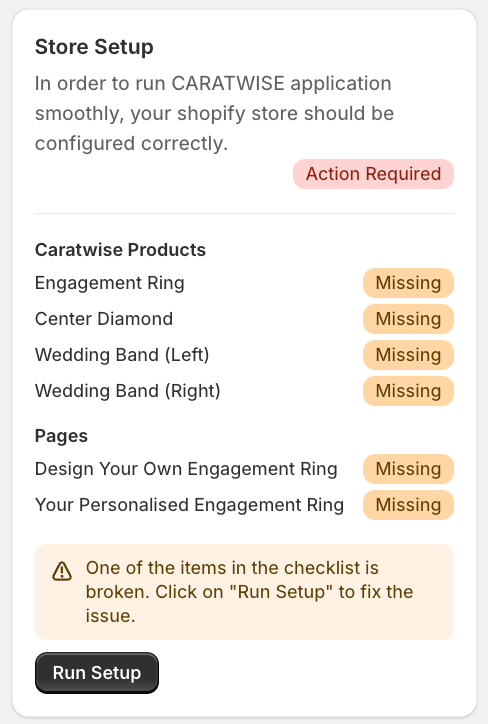
- Click Run Setup (or wait for the auto-check on page load)
- All items should display an Ok ✅ badge
- If any item shows Missing, click Run Setup again
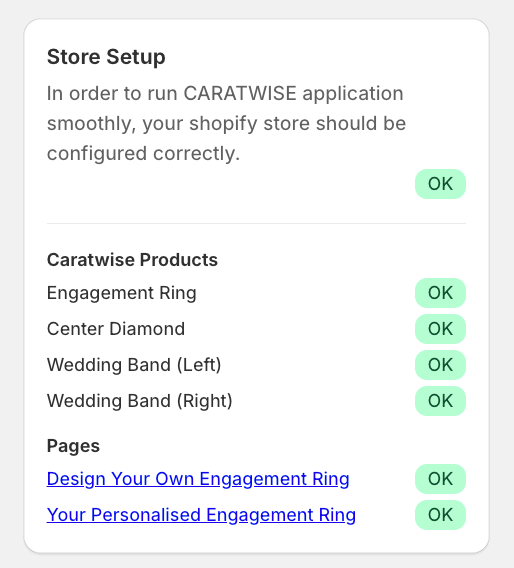
What Gets Created Automatically
1. General Settings
| Resource | Details |
|---|---|
| Design Your Own Engagement Ring | Handle: design-your-own-engagement-ring |
| Your Personalised Engagement Ring | Handle: your-personalised-engagement-ring |
| Engagement Ring | Placeholder product (SKU: CARATWISE-ENGAGEMENT-RING) |
| Center Diamond | Placeholder product (SKU: CARATWISE-DIAMOND) |
| Wedding Band (Left) | Placeholder product (SKU: CARATWISE-LEFT-BAND) |
| Wedding Band (Right) | Placeholder product (SKU: CARATWISE-RIGHT-BAND) |
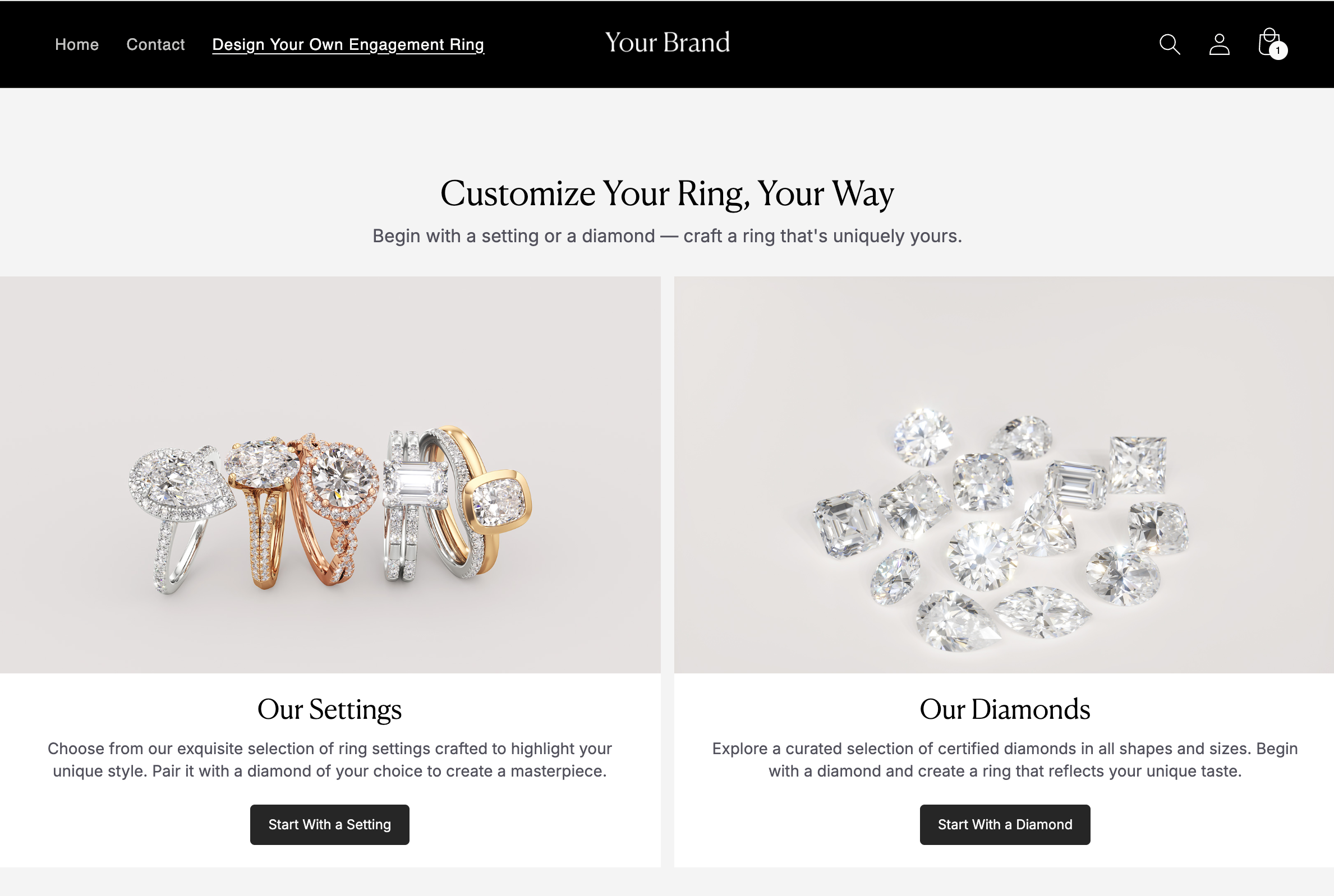
2. Builder Landing Page Configuration
| Field | Description |
|---|---|
| Builder Page Title | Title displayed in the browser tab (editable) |
| Builder Page Handle | URL handle for accessing the builder page (editable) |
| Meta Title / Keywords / Description | SEO metadata for the landing page (editable) |
The builder page is rendered at:
https://yourdomain.com/pages/design-your-own-engagement-ring
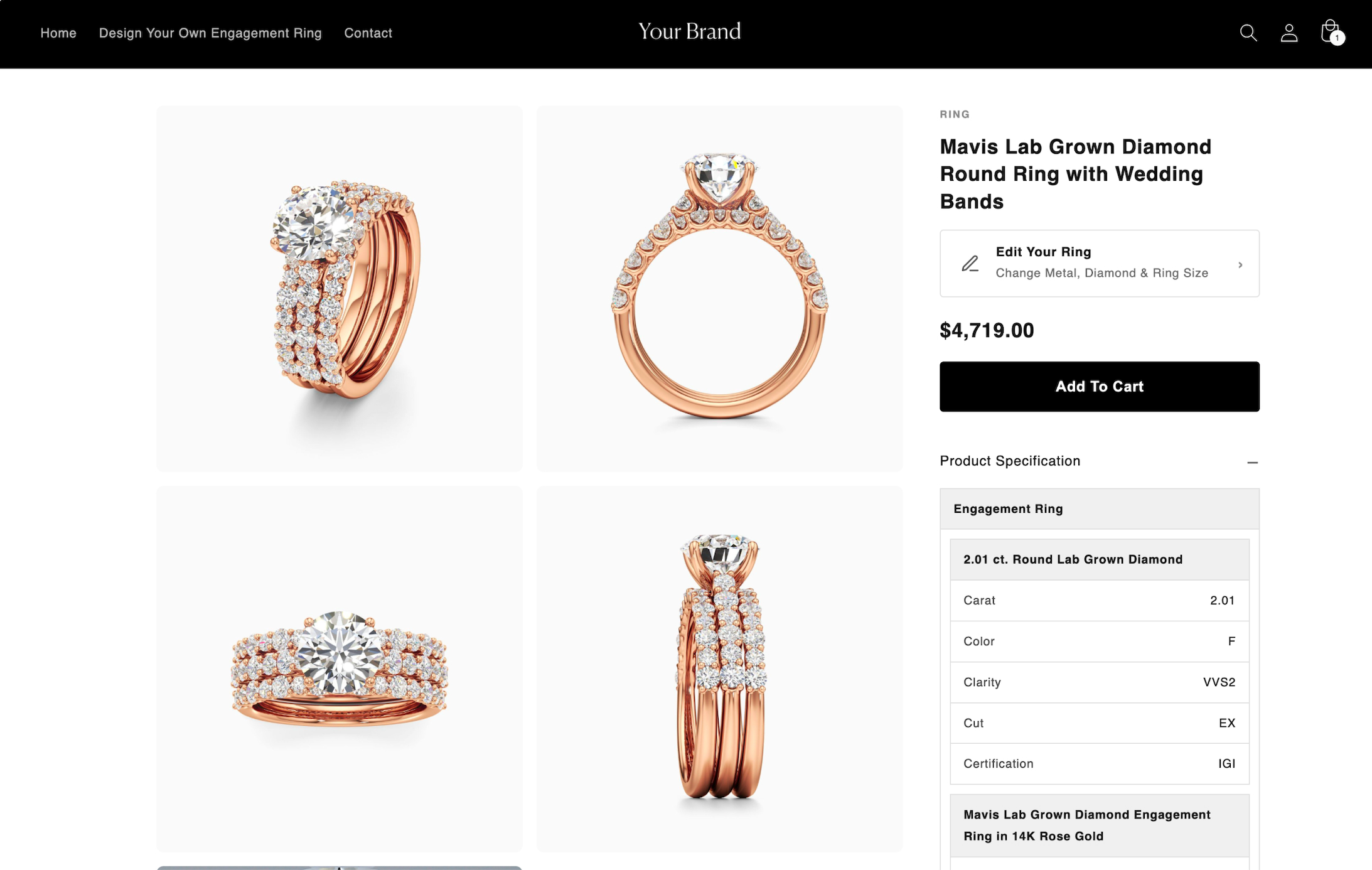
3. Product Page Configuration
| Field | Description |
|---|---|
| Product Page Title | Title displayed in the browser tab (editable) |
| Product Page Handle | URL handle for accessing the product page (editable) |
The product summary page is rendered at:
https://yourdomain.com/pages/your-personalised-engagement-ring
Product Visibility Setup
Go to Shopify Admin → Products:
- Ensure Caratwise products are Unlisted
- Assign them to the Online Store sales channel
- Keep them hidden from customers by:
- Not adding them to any collections
- Not linking them in navigation
- Not exposing direct product URLs
ℹ️ These products are required for cart functionality but are not meant to be browsed directly.

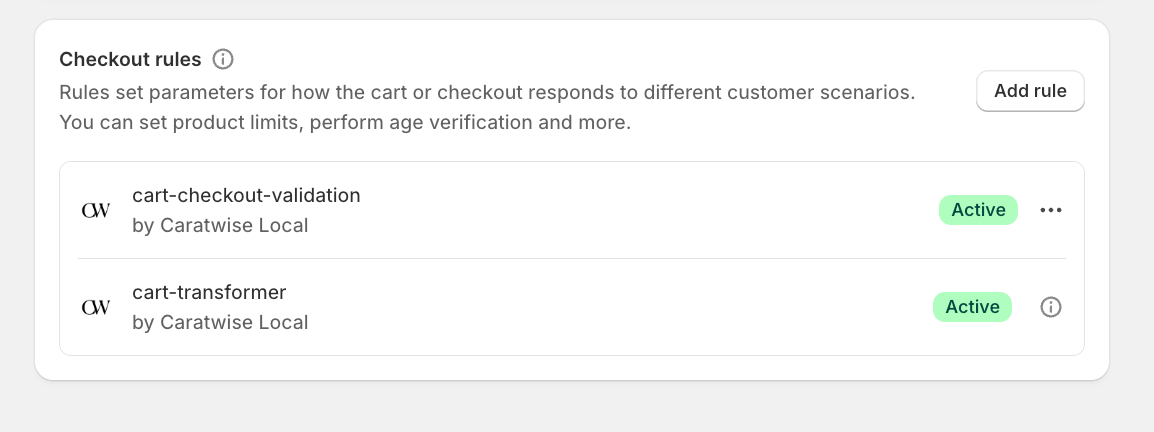
⚙️ Activate Cart Transformation & Checkout Validation
To ensure Caratwise functions correctly, both features must be enabled.
Step 1 — Activate Cart Transformation
- Go to Shopify Admin → Apps → Caratwise
- Open Settings / Functions
- Enable Cart Transformation
Step 2 — Activate Checkout Validation
- Go to Shopify Admin → Apps → Caratwise
- Open Settings / Functions
- Enable Cart & Checkout Validation
Function Active Status:
⚠️ Important Notes
Both features must be enabled for proper functionality. If disabled:
- Cart logic may not work correctly
- Inventory validation may fail
- Invalid configurations may proceed to checkout